Managing People
Overview
The Overview section provides complete details of the person.
The first row displays title, department and status.
The second row highlights the persons name.
The third row displays address, email, phone number and organization.
The fourth row displays costs associated with the person.

Current Assignments
The current assignment section lets you toggle between the assets, subscriptions and locations assigned to this person.
Along with the name, this section will also include a badge indicating how long it has been since the assignment was made.

Timeline
The timeline documents everything that has been associated with this person. Every asset, subscription, and location. Including events this person was responsible for such as accidental damage to an asset. Every activity is recorded in one place, and each timeline entry can be edited with a single click.
Comments and attachments are supported on all timeline entries. Click on any item to edit it and you can make comments or upload attachments. Timeline items with comments will show a comment bubble icon and items with attachments will show a paperclip icon on the activity line.
Actions Button
The actions button in the top right corner is how you manage the person. This is purposely the only button on the page. Any action you need to perform on the person is done in the actions button.
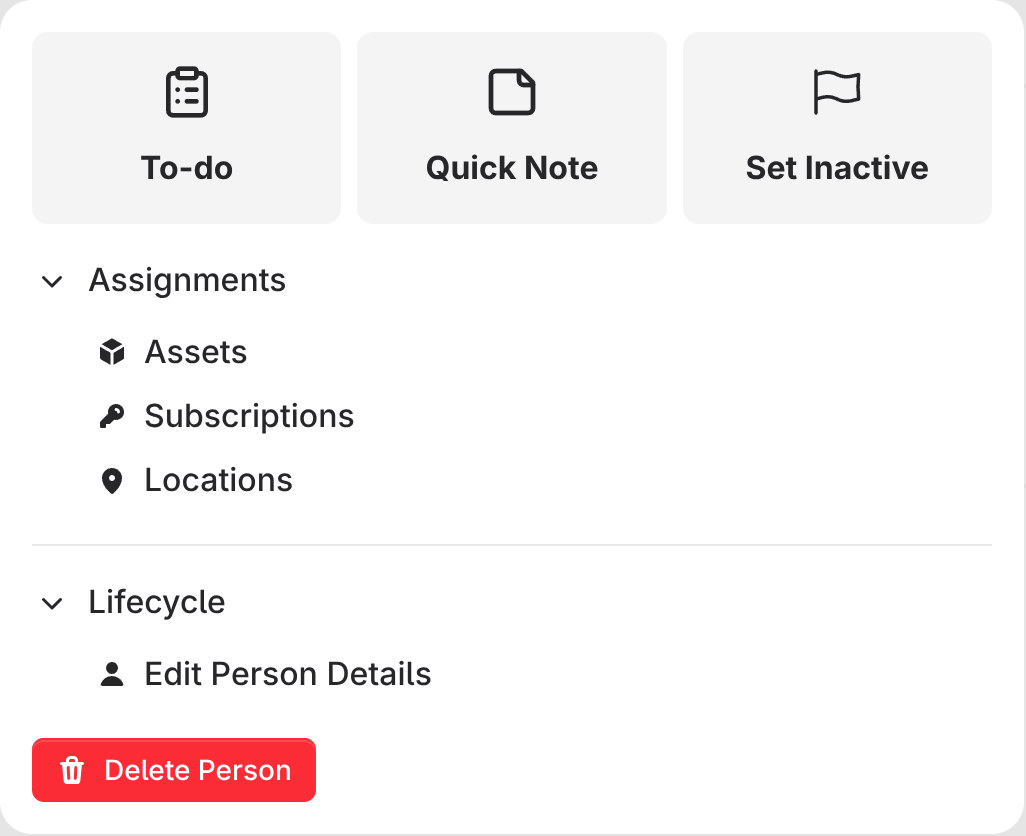
The To-do button is for recording a To-do on that person. If something needs to be completed in the future by you or someone else this is where you create it. For example a person in your organization comes to you with a broken cell phone and they need a replacement or repair. You can make a to-do for that person to follow up and get the phone fixed.
The Quick Note button is simple and straightforward. It will create a timeline entry that is a simple note. Use this for recording things like informational one off events on the person.
The Set Active / Inactive flag will change the status of the person. It will not change any assignments.
Under the assignments dropdown you can update the current assignments of assets, subscriptions and locations.
Under the lifecycle dropdown. Edit Person Details is where you update the base details of the person such as name, address, etc.